Emlyn Hughes International Soccer
football game for Commodore 64, 1988
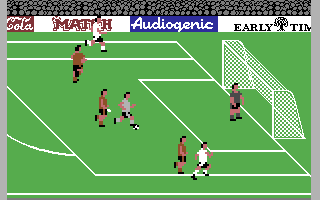
------------------------------------------------------------------------------
Emlyn Hughes INTERNATIONAL Soccer offers realistic arcde action and
football management combined into one great game! The wide range of
facilities and control options have between designed in such a way
that you can sit down and play without hours spent studying the
manual, and getting to grips with the controls.

One or two can play, wither against each other, or against the
computer. You can even watch two computer teams playing each other!
Player skill levels and fitness levels vary, so picking the right
team is just as important as the way you control your players during
the game.

Fixture lists, results, and league tables may be displayed at any
time duting the season, and if you have a Commodore or compatible
printer you can even print them out as a permanent record.

GETTING STARTED
If you've played a computer football game before you'll already know
the basic controls. For anyone who's playing football on a computer
for the first time, here's what you do:

1. The home team (the team which starts playing from left to right)
is controlled by a joystick plugged into Port 2. If you want to play
with a friend, plug a second joystick into Port 1 - this controls
the away team.

2. You control one player at a time. The shirt of player you are
controlling at any particular time is highlighted in a different
colour (and his name is displayed at the top of the screen). If your
side has the ball, the player with the ball will be highlighted,
unless it is a throw-on, a goal- kick, a corner, or a free kick, in
which case you will control one of the players waiting to receive
the throw or kick.

3. Move the joystick in the direction you want your player to run
and hold it in that direction until he reaches the required speed.
If you now allow the joystick to return to the central position he
will continue moving in the same direction and at the same speed. To
slow down the player, move the joystick away from the direction of
movement.

4. To kick the ball press and release the fire button. The lenght of
time you hold the fire button down determines the strenght of the
kick. All actions which are controlled by the fire button are
triggered only when you release the button.

That's all you really need to know to be able to play, but there are
many more controls to learn about as you become more confident and
proficient.


PLAYER CONTROL - ADVANCED TECHNIQUES

TURNING
To change direction, move the joystick so that it points in the new
direction. Of course, as in real life you can't suddenly turn round
without losing some momentum. If, for example, you move the joystick
so that it is pointing in the opposite direction your player will
slow down, turn around, then start running again.

You'll find that if you move the joystick through 180 degrees
yourself, going through all the angles between (i.e. don't pass
through the centre), you can change direction much more quickly. The
same principle appiels to other changes in direction. This can give
an experienced player a useful edge over a less practised opponent.

SIDESTEPPING & BARGING
When you're trying to dribble past the opposing defenders you'll
often want to sidestep to avoid a tackle. Sidestepping involves
taking a step to the left or right without automatically changing
direction, and can be very useful.

To sidestep move the joystick from the central position at 90
degrees to your direction of movement, and release it instantly (if
you hold it too long or pass through the 45 degree angle you'll
actually change direction). To barge a player running alongside you
use exactly the same control method.


KICKING THE BALL

- ADVANCED TECHNIQUES
If you should kick the ball only in the direction you were running
it would be very difficult to pass and shoot accurately. Emlyn
Hughes International Soccer allows you to control the height and
direction of the ball when you kick it.

CONTROLLING THE HEIGHT
You can kick the ball at three different heights, determined by
where the joystick is when the fire button is released. If the
joystick is pointing in the direction that the player is running the
ball will stay low. If the joystick is pointing in the opposite
direction the kick will be lofted (ideal for lobs and centres)
whilst if the joystick is in the central position a 'normal' kick
will result, halfway between the other two.

CONTROLLING THE DIRECTION
You can kick the ball in up to five different directions, depending
on the options selected before you start playing. If you choose the
1-direction option the ball is always kicked straight ahead (you
can, of course, change direction just before kicking if you want to
fool your opponent). The 3 -direction option allows you to kick
straight ahead, or at 45 degree angles either side; move the
joystick at right angles to the direction you are running after you
press the fire button (but before you release it, of course!)
The 5-direction option is the most difficult to use, but by far the
most powerful, not least because it allows you to kick the ball at
angles not otherwise available. You should aim, therefore, to master
this method of kicking as soon as possible.

To access the additional direction move the joystick at right angles
to the direction of movement. If you let go of the joystick before
the fire button is released the ball is kicked at an angle of about
20 degrees to the direction of travel (ideal for shots); if the fire
button is released before you let go of the joystick the angle
increase about 70 degrees (just right for centres, or when you want
to pass the ball out to the wing). Whilst the 5-direction option
does not give you access to the 45 degree angles you can always
change direction just before shooting or passing.

Of course, you can combine the controls that set the height of the
kick with those that fix the direction-so, for ecample, if you move
the joystick away from the direction of movement and also to the
side you get a lofted angled kick. Allowing for the possible
variations in strenght of kick there are literally hundreds of
possible different kicks!


BACKHEELS
To backheel the ball press the fire button and move the joystick
backwards (i.e. away from the direction you are running), the
forwards, while the fire button is held down. Backheeling the ball
is sure to confuse the opposition!


CHOOSING WHICH PLAYER YOU CONTROL
When the player you are controlling is not in a good position to get
the ball you will usually want to select a different player. There
is an automatic re-select option, where the computer will decide
which player is in the best position, but manual re-selection allows
experienced players to use their skill to advantage.

To select a player press the fire button, move the joystick in the
approximate direction of the player you wish to select, then release
the fire button. If there are two players in similar direction the
computer may highlight the wrong one-repeat the process until the
right onw is highlighted.

It is not possible to choose another player when the player you are
controlling has the ball (since pressing the fire button would make
him kick it), or when he is very close to the ball (in which case
pressing the fire button might initiate a sliding tackle or diving
header). However, with practice, you will find it easy to change
control, when you pass the ball from the player who made the pass to
the player who will receive the pass point the joystick in the
direction of the pass and press fire.

Whichever re-selection option you have chose a player on your side
who comes into possession of the ball will automatically be
highlighted (unless he is tacking a throw-in, corner or free kick).


HEADING THE BALL
To head the ball press and release the fire button. Provided the
ball is within range your player will jump up to head the ball. If
the ball is too low for a normal header he will automatically
attempt a diving header (diving in the direction he is running).

A diving header results in the ball bouncing off in the direction of
the dive; the direction of a normal header depends on the joystick
position at the time the ball makes contacts with your player's
had-you can select any of 8 angles, so you can flick the ball or
head it backwards if you are skillful enough.


SLIDING TACKLES
Sometimes the ball is just too far away for you to trap it normally,
or for a normal tackle to be effective. In this situation, the
solution is to slide towards the ball to gain the added yard of pace
that you need.

Press and release the fire button to initiate a sliding tackle (the
ball must be too low for you to head it, otherwise a diving header
will result). If you come into contact with the ball you may succed
in controlling it, or it may break loose. You may even give away a
free kick, especially if you tackle from behind so take particular
care when tackling in the penalty area!


FREE-KICKS, CORNERS & THROW-INS
These are handled automatically. The ball is kicked or thrown to the
highlighted player, either after a few seconds (the time varies) or
when the fire button os pressed and released with the joystick
central) if the joystick isn't in the middle it will be assumed you
are trying to change players. If the goal is in view the player
taking a free kick will sometimes take a shot.


PENALTIES
These can be handled automatically, but if you want to increase your
chances of scoring you can take control. Just hold down the fire
button (to determine the strenght of kick) and move the joystick in
the appropriate directions during the run-up, as if you were kicking
the ball normally. Of course, if you kick the ball straight ahead
the goalkeeper is likely to save it, unless you lob it over his
head.


CONTROLLING THE KEEPER
You can choose between controlling the goalkeeper, or allowing the
computer to control him. You only control the goalkeeper when the
goal is under threat; to make him dive or gather the ball you must
press and release the fire button with the joystick central. Any
other joystick movements are interpered as instructions for your
highlighted player.

When two players are playing against the computer the goalkeeper can
be controlled by either player. Automatic control of the goalkeeper
is recommended for beginners. It is the timing of the fire button
release that determines whether or not the goalie has the best
chance of saving the shot.


PAUSING THE GAME
Pressing the COMMODORE LOGO key halts the action at any time during
teh game. You must pause the game if you want to take photographs of
the screen (hint: use an exposure slower than one-quarter of a
second, otherwise you will get dark bands across the screen -
ideally you will need a tripod to ensure that the camera does not
move).

Press the COMMODORE key again to restart a paused game.


SUBSTITUTIONS / CHECKING FITNESS LEVELS
During a match the fitness of the player steadly decreases, and may
go down suddenly if a player is injured by a bad tackle or awkward
fall. If you press Q whilst the game is paused and the ball out of
play (for a throw-on, corner, goal-kick or penalty) the menu screen
will appear. Menu selection that are unavailable during a game are
shown in italics.

Select the Pick Team option from the game menu. This looks exactly
the same as the Edit Team screen, but you cannot change anything
except the positions. If you decide you do not want to make any
changes, exit from the menu and select Play Game to continue the
match. If you decide to make a substitution (And provided you have
not already used your subs) move the pointer to the player you want
to take off and press fire. Now move the number until it is over the
number of either substitute and press fire again.

Exit from this screen by 'double-clicking' (see the strategy section
for more details).


AUTOMATIC PLAY
If you have opted to view matches between computer teams, once you
have started the first game between computer teams the computer will
take charge and automatically start the next game if the joystick is
not moved after about half a minute. This will continue until the
joystick is moved, or until the next game involves a human player.
If all 8 teams in a league are computer-controlled you could sit
back and watch an entire season's games being played!


MISCELLANEOUS FEATURES
The music will normally play throughout the menu screens (except
during loading and saving), but you can turn the music on or off by
pressing the RUN/STOP key.

You may find that on your computer the crowd cheering is very muted.
This is because the filters in the sound chip of 64 vary
considerably. If you depress the SHIFT-LOCK key while the game loads
a different set of filter values will be used that should improve
the sound considerably. Remember to release the shift lock when the
game has loaded.

Press the UP-ARROW to skip the sequences where players are running
on or off the pitch, or back to their positions after a goal is
scored. Press : to terminate the current half prematurely; press
RUN/STOP to abort the game, or RESTORE to restart the game.


STRATEGY & OPTIONS SECTION
Emlyn Hughes International Soccer offers a wealth of different game
options. All of these options are selected using a simple drop-down
menu system.

Almost all menu functions are performed using the joystick, but
occasionally, you will need to use the keyboard to enter a name. To
display the meny bar (which shows the names of the four menus) move
the arrow to the title at the top of the screen and press fire again
to display the full menu.

Use joystick to move the pointer up and down the menu, then press
the fire button when it points to the menu option you require, or
the item you wish to alter.

Some items in the menu are followed by a trick or a cross. These are
options you can turn on or off by pressing the fire button. Other
display values (or sometimes colours) that you can change by moving
the joystick left and right whilst the fire button is held down.
Move the pointer to the option you require and press fire to select
it.

Sometimes menu options will be shown in italic characters. These are
options that are not available at a particular time. For example, if
there is no game scheduled to be played the play game options will
be shown in italics. Many options are unavailable during a
competition, to prevent cheating!


CHOOSING YOUR SQUAD
The edit teams screen is probably the most important in the strategy
section of the game. It allows you to decide who you want in your
16-man squad for the current season. Once the season begins, you
cannot change any of the squads.

On this screen the pointer is replaced by a hollow square which
moves a character at a time. To change the player names move the
square to the first name you want to change and press fire. A
flashing cursor will appear. Delete the exiting name, if you wish by
holding down the shift key and pressing CLR/HOME, then type in the
next name. You can edit names using the CURSOR LEFT and CURSOR RIGHT
keys, and the INS/DELETE key.

Press RETURN when you have finished entering the new name; the
square pointer will move to the start of the next line, ready for
you to enter another player's name. You can now press either FIRE or
RETURN to display the flashing cursor (this avoids having to
continually change from joystick to keyboard).

The 'played by:' entry denotes whether the team is computer
controlled or controlled by a human player. Any entry other than
computer gives human control. Normally you should enter the name of
the person who controls the particular team.


PICKING TEAMS
You can pick your team using either Edit Team or Pick Team options
(altough during a competition only Pick Team is available). Suppose
that you want to drop a player, say number 7, and replace him with a
player not currently in the team. Move the square where the number 7
is displayed and press the fire button to pick up the number. Now
move the number up or down the column where the replacement player
is found, and press the fire button to drop the number 7 against his
name.

If you allocate a new shirt number to a player who already has a
number you automatically pick up his old number, which of course you
must allocate to anohter player. Numbers 12 and 14 indicate the two
substitutes.

PLAYER SKILL FACTORS
Each player (except for the goalkeeper) has three skill factors,
Running Speed, Defensive Skills, and Attacking Skills. Each skill
can be at three different levels, indicated by the number of blue
buttons that are lit up; the more buttons that are lit the better
the skill level. To change the skill levels move the square to the
appropriate button and press fire - an unlit button will be turned
on, a lit button is turned off. The right hand button is always on.


FITNESS LEVELS
At the start of a season all players are 100% fit, but during each
game the fitness of those players who are playing declines steadily
due to fatigue - and may fall drastically after a bad tackle.

Players whose fitness declines below 75% will start to play well
below their normal standard of skill, and you may need to substitute
them. Sometimes you may decide to take a chance and play one of your
star players even though he is unfit - it may pay off, but it could
also be a disaster.

Fitness levels will normally increase in the week between matches,
but you may find that players need to be rested for a week or two to
regain full fitness. Fitness levels are not taken into account in
friendly matches, or when the Equal Skills option is selected, nor
do they change during the game - in other words players play as if
they were 100% fit during a friendly match, but at the end of the
game their skill level will be uncanged from its status before the
start of the game.


EXITING AFTER EDITING TEAMS
(DOUBLE-KLICKING)
When you have finished editing the team move the pointer to a blank
space, then press the fire button twice in quick succession (known
as double-klicking). This will display a box with three buttons.
Move the pointer to the ? button and press fire. If you
double-clicked by mistake, move to the X button and press fire to
exit from editing without any changes being made (i.e if you have
made a mess of things!) Press fire when the pointer is on the button
marked with a tick, if you are happy with the changes you have made.


COMPETITIONS
There are three different types of competition that you can play in,
a league in which all 8 teams play each other once or twice
(depending whether the Home & Away option is selected), a cup which
is a knockout competition between 8 teams, and a championship, in
which the 8 teams first play in a league, then the top four teams
play a knockout competition to decide the winner. The Season option
gives you two seperate competitions, a league and a cup.

When you start any competition, any competition which is already in
progress is abandoned. So if you wish to play both a Cup and a
League you must use the start Season option. If you want to start a
new competition and continue the existing one at a later date use
Save All function to save the state of the competition.


SAVING THE GAME
Since there could be as many as 60 matches in a season, it is
obviously essential to be able to stop at any stage and restart
another day. The Save All option under the Game Menu not only saves
all the fixtures and results to date, but all the team details
including names, skill levels, and fitness levels, together with the
current settings of the various options. Save Team records only the
data for a particular team only, and not option settings, results or
fixtures.

If there is an error during loading or saving the message Tape Error
or Disk Error will be displayed. Press fire to clear the error
message and start again. If you are saving to disk likely problems
are full disk, an unformatted disk, or trying to save under a name
which already exists on the disk.

Do not attempt to save anything to the program disk or tape. You
must use one of your own disk or tapes. Remember also that you must
load the program before attempting to reload an unfinished game.


OPTIONS MENU

Duration:
Each Match can last up to 90 minutes (plus extra time).

1 or 2 vs. Computer:
When the computer is controlling one team the other team can be
controlled by one or two human players.

Extra Time:
Extra time can be played in the event of a Cup game being drawn.
Otherwise replay is necessary.

View C vs. C:
Matches between two computer teams can be viewed.

Home & Away:
In a league competition teams can play each other once or twice. If
they play twice, then each team plays away once, and at home once.

Practice:
In Practice mode the computer-controlled opposition stays in its own
half and only offers the minimum of interference. Use this mode to
gain experience of the control system, and to practice more advanced
features.

Skill level:
There are 10 different skill levels for computer teams. These skill
levels are in addition to the individual player skills.

Equal Skills:
If you prefer, all players can have the highest skill levels.

Backheels:
Backheels can be allowed or disallowed.

Kick Directions:
You can choose to be able to kick in 1, 3 or 5 directions.

Auto Goalie:
The goalkeeper can be controlled automatically or manually.

Auto Re-select:
Re-selection of players can be manual or automatic.

Points For Win:
In a league either 2 or 3 points can be awarded for a win.

Substitutes:
Either 1 or 2 substitutes are allowed.


COLOURS MENU
The following options are available (player shirt colours are
changed using the Team Colours option in the Game menu):

Pitch Colour:
Changes the pitch colour.

Line Colour:
Changes the colour of the lines and goals.

Ball Colour:
Changes the colour of the ball.


GAME MENU
The following selections are available.

Play Match:
This starts the game shown at the bottom of the screen.

Arrange Friendly:
You can at any time (even in the middle of a competition) arrange a
friendly match between two teams. Move the pointer to each team in
turn and press the fire button. The first team selected is the home
team.

Team Colours:
Select a home and away strip for each team; the away team plays in
away strip when both teams have the same home strip.

Postpone Match:
If the human(s) supposed to be playing in the next mactch is not
available the match can be played at the end of the current week's
fixtures.

Start Cup:
Starts a knockout competition with 8 teams.

Start League:
Starts a league competition with 8 teams.

Start Championship:
Starts a World Cup-Style league/cup competition.

Start Season:
Starts a season in which both a league and a cup are played.

Edit Team:
You can change the names of the teams and the players, as well as
their skill levels. However these cannot be altered once a
competition has started.

Team:
This shows which team is currently displayed; move the joystick left
or right to change to a different team.

Load Team:
A team saved to tape or disk can be loaded.

Save Team:
A user-created team can be saved

Load All:
Restores the state of the game previously saved with Save All.

Save All:
Saves all tewam data, fixtures, results, colours, options etc.

Format Disk:
Formats a blank disk.


DISPLAY MENU
The following displays can be selected:

Show Teams:
A list of the 8 teams is displayed with their managers (i.e, human
player or computer).

Show Players:
A list of the players in a particular team is displayed.

Team:
Identifies which team is displayed.

Show Fixtures:
Displays the fixtures for a particular week or team; change the
team/week to the one you require

Show Table:
Shows the league table.

By team:
Results/fixtures displayed by team...

By week:
... or by week.
Week:

Which week is displayed

Print:
Dumps screen to a serial printer (not during game!)

Auto Linefeed:
Selects auto linefeed on/off


HINTS
Here are some tips to help you get the most out of the game:
Be realistic when you fix the player skill levels, for example
forwards will usually be faster runners than backs, but of course
they won't be so good at defending. The three numbers shown under
the table of skill levels give the number of skill points for each
skill, and if you and your friends are picking squads you could
decide to have a certain number of skill points to allocate to the
players.

Learn to master the simple skills before you attempt some of the
more sophisticated moves.

Remember that because of the angle from which you are looking down
on the pitch it doesn't seem as wide as it really is.


PROBLEMS?
Nothing happens when I select Play Game : If the next match is
between two computer teams you won't see anything unless there is a
tick against View Computer vs Computer in the Options Menu.

I can't seem to control the game : Probably, both teams are
computer-controlled. You could, however, be using the wrong
joystick. When only one team is under player-control the joystick
plugged into Port 2 is always used.

Nothing happens when I press the fire button : That's right,
strictly speaking. All actions are tiggered by the release of the
fire button, because the lenght of time the fire button is held down
needs to be measured.

I am having trouble controlling throw-ins and free kicks : To force
a throw-in or free kick to be taken you must press the fire button
and release it with the joystick in the centre position. If the
joystick is not central the computer will assume you are trying to
change another player.
------------------------------------------------------------------------------
Some useful keyboard shortcuts
------------------------------------------------------------------------------
       [PAUSE] - stop/continue game
          [F9] - quick load game state
         [F12] - quick save game state (still stored after leaving the site)
         [F11] - toggle fullscreen mode
  [ScrollLock] - quick switch control ports
    [PageDown] - make a screenshot (320x200)