Zak McKracken and the Alien Mindbenders
adventure game for Commodore 64, 1988
------------------------------------------------------------------------------
It's 1997, and the world is a dunmber place than ever... Space Aliens
have built a stupidity machine that's slowly reducing everyone's IQ to
single digits. Worse yet, the only person who can stop them is Zak
McKracken, reporter for the disreputable National Inquisitor, who
dreams up stories about carnivorous cantaloupes and vegetarian
vampires.

They've taken over the phone company... Sure sounds like another one
of Zak's tabloid fantasies. But while most people wouldn't believe
him, he finds three who don't need convincing--Annie, Head of the
Society of Ancient Wisdom, and her friends, Leslie and Melissa, two
Yale coeds who traveld to mars in their modified van. The four of them
must piece together fragments of an ancient puzzel, unmask the aliens,
and destroy the stupidity machine.

Here's where you come in... You direct the actions of Zak, Annie,
Melissa, and leslie, tacking them to many exotic places where they
discover some pretty strange objects--and some even stranger
characters!

To help you solve the game's dozens of puzzles, movie-like "cut
scenes" will appear from time to time. They will reveal new dimensions
of the story by showing you what's happening elsewhere in Zak's world.
You'll also find plenty of valuable clues in the enclosed copy of the
National inquisitor.

Playing The Game

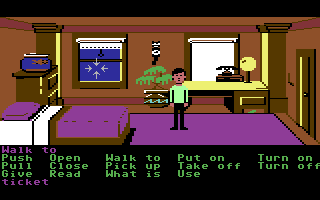
After the opening title sequence, you will see Zak standing in his
bedroom. When he turns to face you and the text appears at the bottom
of the screen, you will be ready to start directing his actions

1) The Message Lines are the two lines at the very top of the screen.
Words spoken by any of the characters, as well as hame-related
messages , appear here.

2)The Animation Window is the largest part of the screen and is where
the animated action takes place. It shows the "Camera's Eye View" of
the room or location that the currently active character is in.

3)The sentence line is directly below the Animation window. You use
this line to construct sentences that tell the characters what to do.
A sentence consists of a verb(Action word) and one or two
nouns(Objects).  An example of a sentence you might construct on the
sentence line is "Use Crayon on torn Wallpaper." Connecting words like
"On" or "With" will be automatically inserted by the program.

4)Verbs must be selected from the words in the columns below the
Sentence Line. All the verbs shown can be used. Check the list from
time to time--New verbs will appear as the game progresses. To select
a verb position the cursor over the word and click.

5)The Inventory is the area below the verbs. Each character you
control has his or her own inventory. At the beginning of the game Zak
starts with only one object. When a character picks up or is given an
object during game play, the object's name is added to the character's
inventory. There is no limit to the number of objects a character can
carry.  When there are more than four objects in an inventory, arrows
appear in the middle of the list. Use them to scroll the list up or
down.

Nouns(Objects) can be selected in two way's. You may select a noun by
placing the cyrsor over an object in the animation window and
clicking. Most objects in the environment, and all usable objects in
the game. have names. If an ogject has a name, it will appear on the
Sentence line when you click on it. You may also select nouns by
clicking on them in the inventory.

To move the character around, select "Walk to" from the verbs by
psisitoning your cursor over it and clicking. then move your cursor
into the animation window, point it where you want the character to
go, and click. If you point to an open door and click, the character
will walk through it. Motice that "Walk to" appears automatically on
the sentence line after a sentence has been executed--This os because
moving around is what your character will be doing most often.

To tell a character to carry out the directions you've put on the
sentence line, either click once more on the final noun or verb
selected, or click once on the sentence line itself. If nothing
happens, double check the way you constructed the sentence.

To replace a noun or verb on the sentence line without reconstructing
the entire sentence, simply click on the replacement word. It will
appear in the right place in the sentence.

"Cut-scenes" are short, animated sequences--like scenes from a
movie--which can provide clues and infomation about the charactes.
When you are viewing a cut-scene, you do not direct the action so the
text below the Animation window disappears.

Things to Try

Open Zak's dresser drawer. Select "Open" from the verbs and then click
on the dresser in Zak's bedroom, creating the sentence, "Open
Dresser." Click again on the dresser to execute the sentence.  Zak wil
walk over to the dresser and open it.


To pick up the plastic card under Zak's desk, try the sentence "Use
Phone bill with plastic card."

First, place your cursor over the "Use" verb and click once."Use" now
appears on the sentence line

Second, move the cursor over the phone bill in the drawer and click
once, creating the sentence "Use Phone bill with."

Third, select the plastic card by moving your cursor over the object
in the animation window. By double-clicking on the plastic card you
can complete the sentence and execute it at the same time.  Notice
that Zak was smart enough to pick up the phone bill first.


Read Zak's phone bill by moving the cursor over "Phone bill" in the
inventory list below the verbs and click once, creating the sentence.
"Walk to phone bill." This time, instead of clicking on the noun a
second time, click on the "Read" verb, changing the sentence to "read
phone bill." Click once more on the "Read" verb and Zak will read the
Bill, Notice that the final click can be on either the noun or the
verb.

Walk Zak to his living room by first openning his bedroom door ("Open
door") and then walking through it ("Walk to door"). The screen will
iris to black while the next room os loaded from disk.

Special Verbs and Function Keys

To switch control from one character to another, select the verb
"Switch."The names of the four characters you can control will appear
as verbs.Place the cursor over the name of the character you want to
control and click once.As a short-cut, you can use function keys or
number keys to change characters (see below). NOTE: THE SWITCH VERB
WILL NOT APPEAR UNTILL ZAK HAS SOLVED SEVERAL PUZZLES AND MEETS ANNIE.

To find out what is in a room, select the "What is" verb and move the
cursor aroud the room. When the name of something appears on the
sentence line, you'll know that it is an "Active" object and you might
want to use it in the game. If you click on that object, the "Walk to"
verb will appear instead, You can then click on the object a second
time to make your character walk to it, or you may click on any other
Verb that you want to use with that object.


Function and command keys

Switching characters
Zak               F1
Annie             F3
Melissa           F5
Leslie            F7

Bypass a cut scene  RETURN
restart a game      Shift-F7
pause game          Spacebar
Message line speed:
Faster              +
slower              -


A Few Helpful Hints

- Pick up everything, at some point you'll probably use it
- Read the National Inquisitor thoroughly, It's full of clues
- Almost everyone has something to offer
- Several puzzles require coordination between two or more
of the characters
- there is more that one way to solve many puzzles
- If your cash card become's low..find a way to win the lottery!
------------------------------------------------------------------------------
Some useful keyboard shortcuts
------------------------------------------------------------------------------
       [PAUSE] - stop/continue game
          [F9] - quick load game state
         [F12] - quick save game state (still stored after leaving the site)
         [F11] - toggle fullscreen mode
  [ScrollLock] - quick switch control ports
    [PageDown] - make a screenshot (320x200)