Sargon II
chess board game for Commodore 64, 1983
------------------------------------------------------------------------------
Chess is one of the world's oldest and perhaps most popular games.
The strategy behind chess is not unlike making war against a kingdom.
Pawns, knights, queens, and kings battle against each other--two
opposing forces--white and black pieces move on a checkerboard
battlefield.  If you want to know more about chess we suggest you
check your bookstore for one of the many books on the subject.

In the interest of ever-better computer chess, Commodore is proud to
present SARGON II--the world's most popular computer chess program.
The actual playing algorithm for the chess game has been improved with
the result that Sargon II plays a superior game, and at a quicker
speed than most other computer chess games.  During the player's move,
the level of play to which the game has been set is displayed.  During
the computer's move the ply number (How far ahead the computer is
"thinking") is displayed.  For those who are new to chess, the ply
number will be explained in detail later.

Since at higher levels of play, the time between moves can be
considerable, a flashing asterisk is displayed to indicate that the
computer is "thinking".  For those players who need help every once
and a while, a special hint mode has been included that will suggest a
good (but not necessarily the best) move that you can make.  Finally,
SARGON II allows you to analyze any chess problem.

CHANGING GAME COLORS

When the game comes on the COLORS are blue and white.... But
Commodore's Sargon II chess cartridge lets you choose the color of the
chessboard and chess pieces.  More than 50 combinations are possible
but we recommend blue and black, green and black, or blue and white.

1.  TO ADJUST COLOR - Press function key 3 (function keys are the
                      yellow keys on the right edge of the keyboard).
2.  TO ADJUST BORDER COLOR - Press function key 5.


STARTING AND ENDING THE GAME

1.  TO START GAME - Press function key 1
2.  TO END GAME - Hold down the "RUN/STOP" key and type the "RESTORE"
                  key at the same time.

STARTING A NEW GAME

SARGON II has two modes to choose from, which allow you to either play
a game from the beginning or set up a board position from which to
play.

1.  After you hit the f1 key, SARGON asks if you want to play a game
    or set up a position.  SARGON displays:
              GAME OR SET UP (G, C):

Answer G if you want to Start a new game.

2.  SARGON will now ask you:
              YOUR COLOR (B, W):

You can choose either B (the 'black' or darker pieces) or W (the
'white' or lighter pieces), SARGON will choose the other.  Remember
that white always moves first.

3.  SARGON next asks:
              LEVEL OF PLAY (0-6):

Press the number indicating the level of play you desire.  Each higher
level increase SARGON's computation time and playing skill.  As pieces
are exchanged and the amount of material on the board diminishes,
SARGON does NOT take dramatically less time to make a move.  Instead
the look ahead increases automatically.  Average time per move at each
level is listed below.  The actual time for a given move may range from
about 1/3 to 3 times the times given:

                         AVERAGE TIME BETWEEN MOVES

                    0  Immediate Response
                    1  20 seconds
                    2  1 minute
                    3  2 minutes
                    4  6 minutes
                    5  40 minutes
                    6  4 hours

SCREEN DISPLAY

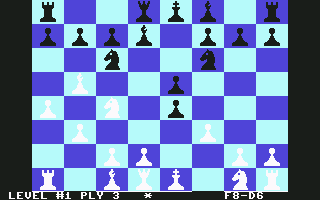
The screen is made up of 3 distinct parts.  The upper left part of the
screen is the actual CHESS BOARD with the rank and file displayed on
the border surrounding it.(See fig. #1) Directly to the right of the
chess board is the MOVE WINDOW, where your moves are entered and the
last five moves are displayed in standard algebraic chess notation.
The bottom of the screen is reserved for messages from SARGON, like
the level of play, whose turn it is, and the "ply" level.  When SARGON
is "thinking" about its next move the Commodore logo will turn red.
SARGON will show what move it is currently thinking about making at
the bottom of the move window.  SARGON will also keep you informed
about the number of moves it is currently 'looking ahead'.  This is
called the "PLY" NUMBER, and is displayed in the bottom right corner
of the screen.  So you don't think SARGON has gone to lunch it will
blink an asterisk next to the game level number.  On some of the upper
play levels, this is a real help.


MOVING PIECES USING JOYSTICK

It's easy moving pieces with SARGON II.  As with most Commodore games,
you have your choice of using a joystick, or the VIC's keyboard.

With the joystick move the cursor over the piece that you wish to move,
then push the button on the joystick.  Now move the cursor over the
position you wish to move the piece 'to' and again push the button.
You have now completed your move and SARGON will display your move as
if you had typed it from the keyboard.

Moving the cursor on top of a piece and pushing the joystick button is
the same as "picking up" a chess piece.  Pressing the button the second
time is the same as "setting down" the chess piece.

Hint - until you get the hang of it, you may find that you push the
button too soon, which gives you an "INVALID MOVE MESSAGE".  Make sure
you first move the flashing cursor to the piece you want to move and
then press the button to "PICK IT UP."


MOVING PIECES USING THE KEYBOARD

Moves must be entered in algebraic chess notation.  This means you must
tell SARGON the file and rank coordinates of the squares you are moving
from and to.  The files are lettered A-H and the ranks are numbered
1-8.  The coordinates of the board are displayed on the border around
the board.  See figure 1.

                    FILE RANK - FILE RANK

Moves are entered in the form FILE RANK - FILE RANK where the first
FILE RANK is the file and rank of the 'from' location and the second
FILE RANK corresponds to the 'to' position.


                                FILE

            A     B     C     D     E     F     G     H
         |-----------------------------------------------|
      8  | A 8 | B 8 | C 8 | D 8 | E 8 | F 8 | G 8 | H 8 | 8
         |-----------------------------------------------|
      7  | A 7 | B 7 | C 7 | D 7 | E 7 | F 7 | G 7 | H 7 | 7
         |-----------------------------------------------|
      6  | A 6 | B 6 | C 6 | D 6 | E 6 | F 6 | G 6 | H 6 | 6
R        |-----------------------------------------------|
A     5  | A 5 | B 5 | C 5 | D 5 | E 5 | F 5 | G 5 | H 5 | 5
N        |-----------------------------------------------|
K     4  | A 4 | B 4 | C 4 | D 4 | E 4 | F 4 | G 4 | H 4 | 4
         |-----------------------------------------------|
      3  | A 3 | B 3 | C 3 | D 3 | E 3 | F 3 | G 3 | H 3 | 3
         |-----------------------------------------------|
      2  | A 2 | B 2 | C 2 | D 2 | E 2 | F 2 | G 2 | H 2 | 2
         |-----------------------------------------------|
      1  | A 1 | B 1 | C 1 | D 1 | E 1 | F 1 | G 1 | H 1 | 1
         |-----------------------------------------------|
            A     B     C     D     E     F     G     H
                     Figure 1.  Board Coordinates

For example, to play the king's pawn up two squares you would type:

                    E2-E4 (and hit the return key)

(Actually you can use anything in place of the "-".)  When SARGON
responds with the corresponding move, it will display it's own move
below yours in the "Move Window".  For example, if you move E2-E4
SARGON Might display:

                    E7-E5

If you make an error before hitting RETURN, press the DELete key to
erase the error and then retype the move.  If you type an illegal move
(like moving a pawn sideways) SARGON WILL BEEP AT YOU AND PRINT
"INVALID MOVE" on the bottom border, hit DELete to restore the bottom
border, then retype your move.  If you keep getting "INVALID MOVE"
check your chess book for proper moves of each piece, or scan the
board carefully to make sure you aren't in "check."  Another common
mistake is trying to castle when in check, or castle "through" a check
square, resulting in an INVALID MOVE.


SPECIAL MOVES

To Castle:

If using the keyboard, just type the king's move and hit RETURN.  The
rook will tag along.  For example, if you are white and you wish to
castle king's side, type:

                    E1-G1 (return)

You will see both your king and rook move.  SARGON lists it as 0-0 or
0-0-0 as in normal chess notation.  The joystick move is also
automatic.

To Capture En Passant:

If you wish to capture one of SARGON's pawns using the En Passant
privilege, enter your pawn's move.  After your pawn move is displayed,
SARGON's pawn will blink then vanish.  When SARGON captures En Passant,
his move is displayed in the same way.  The move is listed as PXPEP.


WHAT THE SOUND EFFECTS MEAN

SARGON II will beep to tell you it has finished thinking and is moving.
It will also beep to signal you if your move is illegal.  To see the
letters after an illegal move, press the delete key once.  It will not
audibly signal a CHECK, although it will say "CHECK" at the bottom of
the border of the chessboard.  It will beep rapidly several times in
succession to signal a CHECKMATE by either side.


HINT MODE FOR BEGINNERS-
SARGON "KIBITZ"

A hint to the player giving what the computer thinks is his best move
is available for most non-book moves.(Ah, but will SARGON II give you
a move it doesn't have to answer for?) To get the computer to look
over your shoulder in this fashion, press the question mark (?) key
and SARGON will display the move for you in the entry portion of the
scroll window.

Note: "Kibitz" was not designed to work at level 0.  Although you may
occasionally get it to work at that level, the moves it advises may not
even be legal.  Remember the castle move is displayed differently from
the way it is entered.  Also, Kibitz may not work until you have
proceeded far enough into the game so SARGON is looking ahead.


LEVEL # and PLY #:

When the board is displayed, the Level # you have selected is labeled
and displayed in the upper right-hand portion of the screen.  Once
SARGON II gets beyond its opening 'book' moves you will also see the
Ply # (unlabeled) displayed to the right of the level #.

The Ply # is the number of half moves ahead of the current move that
the computer is currently searching.  A Ply of 3, for instance,
indicates that the computer has already examined its possible moves
and your possible countermoves, and is currently examining its possible
replies to your countermoves.  The Level # you choose at the beginning
of the game, or after changing the board, represents the MINIMUM Ply to
which the computer will search. (In the beginning and toward the end of
the game, SARGON II will automatically search more deeply.)

The exception to all this is Level 0 where the computer will only
examine its next move at any stage of the game except where a check is
involved.

The blinking asterisk beside the Ply # is just to assure you that
SARGON II is in fact thinking, not asleep.


TO END A GAME OR TAKE BACK A MOVE

Wait until it is your turn.  Then press the STOP & RESTORE keys at the
same time.  SARGON will display the title page.  To end the game and
leave SARGON, simply turn off your VIC.  To change the board proceed to
the following section.


IF YOU HAVE CHOSEN TO CHANGE THE BOARD (SETUP)

You can take back a move, or set up the board to play from any point in
a game.  If you're beginning a game and want to set up a special
situation, press the C key when SARGON asks you if you want a "GAME OR
SETUP:" If you're in the middle of a game, hold down the RUN/STOP key
and hit RESTORE then type F1 and S.  If you were already in the middle
of a game the board will be displayed just as you left it.  The lower
left-hand corner will blink.  That's your signal that you can change
the contents of that square, using one of the analysis commands as
follows:

You may move to other squares on the board by using the cursor keys.
These keys will leave the contents of the square unchanged and blink
the square into which you have moved.

To place a piece on a square type in the piece code followed
immediately by the color code and the code indicating whether the piece
has been moved.  The piece code is a letter indicating the desired
piece.

     K - King       B - Bishop
     W - Queen      N - Knight
     R - Rook       P - Pawn

The color code is a letter indicating the side the piece belongs to:

     W - White      B - Black

The last code tells the computer whether the piece has been moved:

     0 - Not Moved  1 - Moved

Telling the computer whether a piece has moved ensures legal castling
and pawn moves, and tells SARGON II for evaluation purposes whether
the piece has ever been developed.

Examples:

To place a black pawn on its original square type:

     PB0

A white knight in the middle of the board would be:

     NW1

A black king on its original square which has, however, moved:

     KB1

When you have finished changing the board type RETURN to exit the
board.

SARGON II will then ask:

     COLOR TO MOVE NEXT (B, W):

Just type the appropriate letter.

The next question will be:

     MOVE NUMBER (NN):

Try here to enter the move number appropriate to the state of the game
you are setting up.  This number is taken into account by SARGON II in
choosing a strategy which corresponds to the stage of development of
the game.

Next comes:

     YOUR COLOR (B, W):

Again type the appropriate letter.

Finally

     LEVEL OF PLAY (0-6):

When you have typed the appropriate number the game will automatically
proceed from the point you designated.

We wish you many thoughtful hours of good chess.


TEACH YOURSELF CHESS


YOUR FIRST GAME OF CHESS
Using this chess cartridge and a few simple instructions, you can
actually teach yourself to play chess!  The computer will help you,
mostly by trial and error, to understand the game...but before you
begin you need to understand a few basic concepts.

Here are the most important hints you need to know about Chess before
you learn the game:

OBJECT OF THE GAME

The main objective of the game is to checkmate (capture) your
opponent's king before he captures yours.  Whoever "checkmates" the
other's king first wins the game.  CHECKMATE simply means, backing the
enemy king into a corner so he cannot prevent you from capturing him.


CAPTURING YOUR OPPONENT'S PLAYERS - While maneuvering

While maneuvering to checkmate the enemy's king, it will help if you
can eliminate (by capturing) the enemy's most powerful pieces.  To
"capture" an enemy chess piece, all you have to do is move one of your
players to the same square as the enemy piece.  The enemy captures your
piece the same way.  The piece that's moving occupies the square.  The
piece that was there before gets taken off the board.


EACH CHESS PIECE HAS UNIQUE MOVEMENTS

Every piece can only make certain types of movements on the chess
board.  These movements determine how you use your pieces during the
game ... generally, to attack the enemy or defend your own pieces.

EACH CHESS PIECE HAS A "RANK" OF POWER OR IMPORTANCE

Obviously, your king is the most important piece and must be defended
at all costs.  But all the other players have "rank" as well.  Your
queen, for example, is the most important player in your "army."  The
ranking is important because in general, a piece may sacrifice itself
to capture a higher ranking piece.  For example, if a bishop can
capture a queen -- but will himself be captured on the next move -- he
will almost always make the sacrifice because the queen is the more
important chesspiece.

These, then, are the basic concepts of chess.  A bit oversimplified,
perhaps, but enough to get you started.


HOW THE PIECES MOVE -- A BEGINNERS REFERENCE GUIDE
Here is a brief introduction to the different pieces, with RULES OF
MOVEMENT and other comments shown in this easy to use reference
guide -- NOTE THAT THE PIECES ARE LISTED IN ORDER OF THEIR IMPORTANCE
AND RANK/POWER.

MOVEMENT RULES

KING- The king can move one space at a time in any direction.  The king
      can also CAPTURE other pieces...BUT...If an enemy piece moves
      into a position where it can CAPTURE your king on the NEXT MOVE
      your king is IN CHECK.  When you're in CHECK you cannot move any
      other piece until you remedy the CHECK situation.  IF IN CHECK,
      you only have 3 options: move the king, move a piece between the
      attacker and the king, or capture the attacking piece.  When you
      cannot do any of these 3 things, your situation is hopeless and
      you are CHECKMATED.  It is a good practice to try not to move the
      king early in the game in case you want to CASTLE later on.  Once
      you move the king you cannot castle.  CHECKMATE means one player
      will CAPTURE the king on the next move and the king cannot
      prevent it.

QUEEN- The queen starts next to the king, and can move in any
       direction, as many spaces as you want.  The queen can move
       frontward, sideways, diagonally and backwards, but cannot jump
       over or go around other pieces which may block her way.  As the
       most powerful piece on the board you should try not to lose your
       queen.  Keep in mind that all the other pieces except the king
       are LESS important than the queen.

ROOK- The Rook sits on the ends of the first row.  It only moves in a
      straight line forward or sideways (NEVER diagonally).  One way
      to protect your king is to CASTLE..if you HAVEN'T MOVED either
      your king or rook and there are NO other pieces between them,
      you can move your king next to the castle and the castle will
      automatically JUMP OVER the king.  This is called CASTLING and is
      one way to quickly move your king to safety.  NOTE YOU CAN'T
      CASTLE IF YOUR KING IS IN "CHECK" (THREATENED) BY AN ENEMY PIECE.

KNIGHT- The knight (or "horse") moves 3 SPACES AT A TIME, always in an
        "L" shape.  Imagine the knight at the TOP or bottom of the L,
        and the L can be backward or frontward.  Just count 3 spaces...
        2 ahead and 1 sideways, or 1 ahead and 2 sideways.  The knight
        is the only piece that can JUMP OVER OTHER CHESS PIECES.  You
        can jump over your own pieces or jump over the enemy's.  To
        CAPTURE a piece simply move 3 spaces in an L-shape and land on
        top of the enemy piece you want to capture.

BISHOP- Bishops move diagonally, frontward or backward, as many spaces
        as you want as long as you don't bump into another piece.
        Notice you have a white bishop which will always move
        diagonally on the white squares and a black bishop who always
        moves on the black squares.

Pawn- The pawn moves 1 space at a time, forward only.  It cannot move
      sideways or backwards.  ON THE FIRST MOVE ONLY, the pawn can move
      either 1 OR 2 spaces and then 1 space at a time after the 1st
      move.  To CAPTURE another piece, the pawn must move one square
      DIAGONALLY.  The pawn can only move diagonally to capture a
      piece, and cannot capture a piece by moving straight ahead.  A
      pawn generally "controls" or threatens the two diagonal spaces
      directly in front of it.

There are, of course, several special moves like "en passant" which are
covered elsewhere, but these comments should give you enough of a
reference to begin playing.


YOUR FIRST GAME ... LEARN BY DOING

LETS HAVE A GAME OF CHESS!  What?  You haven't played before?  Well,
relax.  Here's a good series of opening moves which will give you a
general idea of how to play the game.  These moves involve some good
habits... for example:

-- controlling the "center" of the chessboard generally gives you an
   advantage.

-- moving pawns and knights out first is a good opening strategy.

-- clearing a space between the king and the castle allows you to
   "CASTLE" to protect the king.


HERE ARE THE MOVES YOU SHOULD MAKE IN ORDER (Use Either Joystick or
Keyboard)

    1.  Insert cartridge and turn on VIC.
    2.  Push f1.
    3.  Press G.
    4.  Press W.
    5.  Press 0 (Zero).
    6.  D2-D4 (RETURN) - Queen's Pawn.
    7.  G1-F3 (RETURN) - King's Knight.
    8.  F3-E5 (RETURN) - Knight to Center.
    9.  B8-C3 (RETURN) - Queen's Knight.
   10.  E2-E3 (RETURN) - King's Pawn.
   11.  F1-D3 (RETURN) - King's Bishop.
   12.  E1-G1 (RETURN) - Castling.
   13.  G2-G3 (RETURN) - Pawn.
   14.  H2-H4 (RETURN) - Pawn.
   15.  YOU'RE ON YOUR OWN!

From here out, you're on your own... sorry... you'll have to complete
your first game by yourself.  Just remember your 3 alternatives if you
find yourself in check. (The computer will tell you if you're in
CHECK): Move your king to safety... move another piece between the
attacker and your king... or capture the attacking piece.  Another
hint:  don't let an enemy knight get too close to your lines or he'll
put your king in check and threaten your castle at the same time and
you'll lose your castle.

One more thing... don't get discouraged... you really can beat the
computer if you keep at it.  Many beginners have beat the computer on
Level 0 within a week or two after they play their first game,
depending on how much they practice.  If you get really bold and want
to play at Level 1, there's a special HINT feature built into SARGON
which will suggest a GOOD MOVE (not necessarily the BEST)...just enter
1 when the VIC asks what level to play at, and type a QUESTION MARK (?)
if you want a hint from the computer.  This should help you get a
faster idea of how the game is played.

Last but not least... GOOD LUCK!
------------------------------------------------------------------------------
Some useful keyboard shortcuts
------------------------------------------------------------------------------
       [PAUSE] - stop/continue game
          [F9] - quick load game state
         [F12] - quick save game state (still stored after leaving the site)
         [F11] - toggle fullscreen mode
  [ScrollLock] - quick switch control ports
    [PageDown] - make a screenshot (320x200)